This user guide is to show you how to process a unit ownership change.
1. Select "Unit File" from the main menu.
2. Click on the Actions button, then click on Process Moveout.
3. Enter the unit name/number in the search bar.
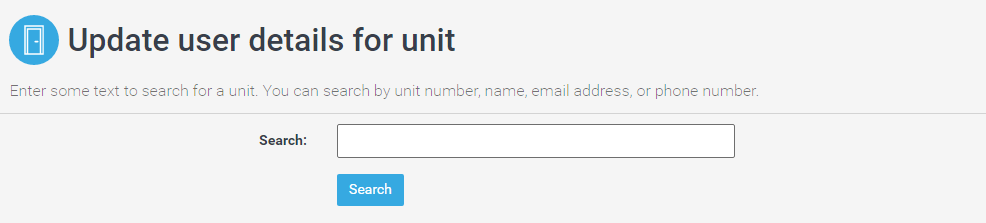
4. Click Select Unit on the right-hand side of the page.

5. Click on the Deactivate button next to the user(s) that are moving out.
6. You will then see a confirmation page to delete the user. You can either select Confirm and Delete User to remove them immediately, or Delete User at a Later Date.
7. Add a new owner to the unit, select New from the Unit Details page.
8. You will then be able to fill out the new User form. Fill in the details.
9. Click Save once complete.
10. If you have entered an email address for the new user, a welcome letter will be sent via email with information on how to register. If you have only entered a mobile number in the "Cell Phone" field, a temporary password will be sent via SMS to the user's mobile.
11. On the Process Moveout page you can add or deactivate Unit Common Elements, Assets, Vehicles, Pets, FOBs/Remotes/Keys, Authorizations, Parcel Waivers, Electronic Consent, and Lease Details. You can also add or remove an offsite address.
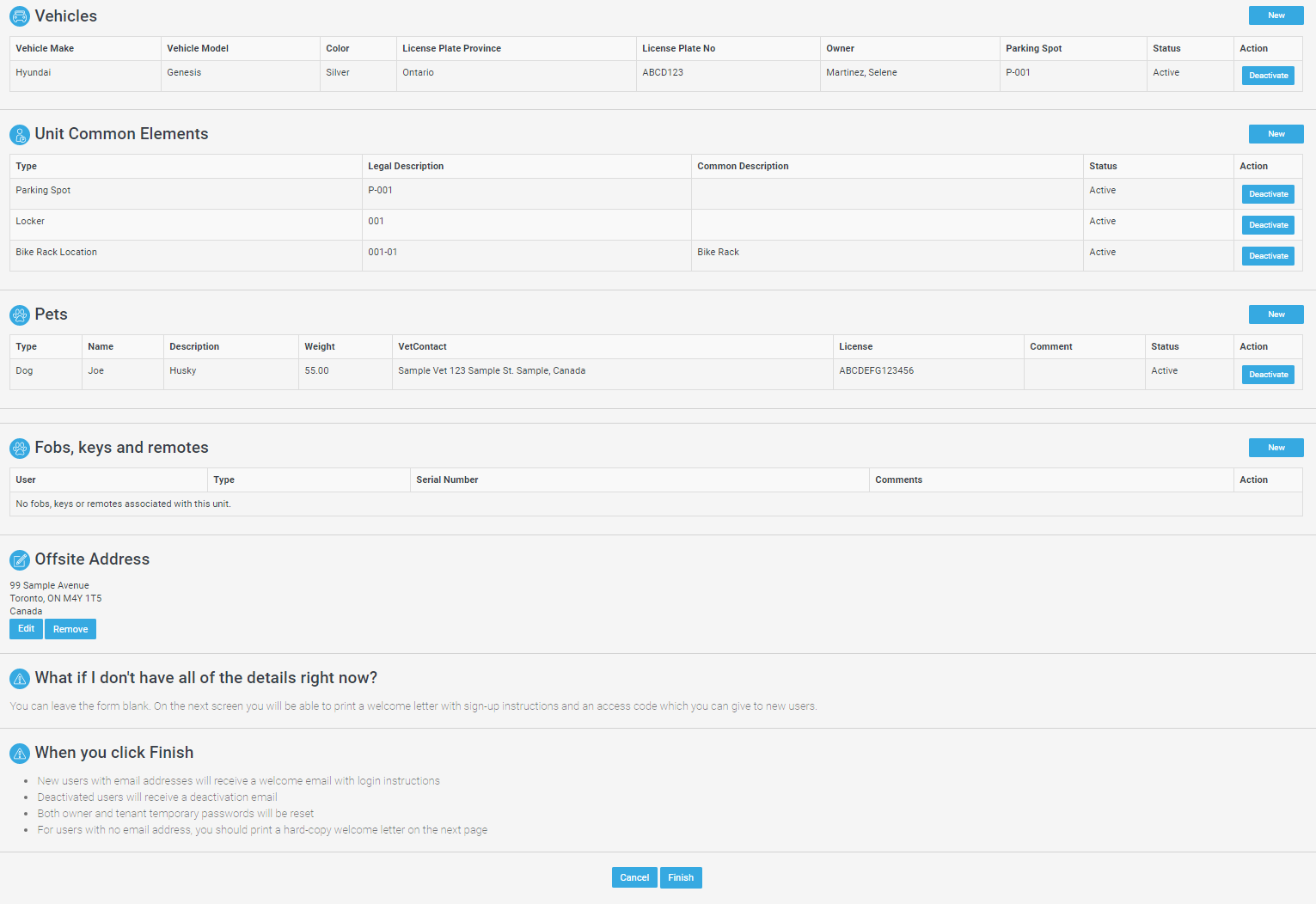
12. Click Finish once you have made the necessary changes to finalize the process.